Adjust disk size of a Fresh-start desktop in the course
If a current Fresh Start machine runs low on disk space, you can quickly expand it to increase capacity.
First, stop the Fresh-Start machine.
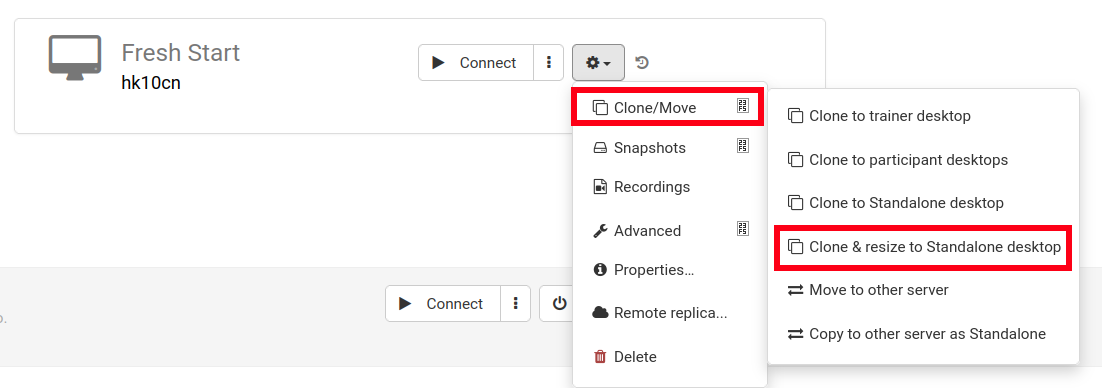
Next, choose Clone & Resize to Standalone as shown (set up an organization if you haven't already)
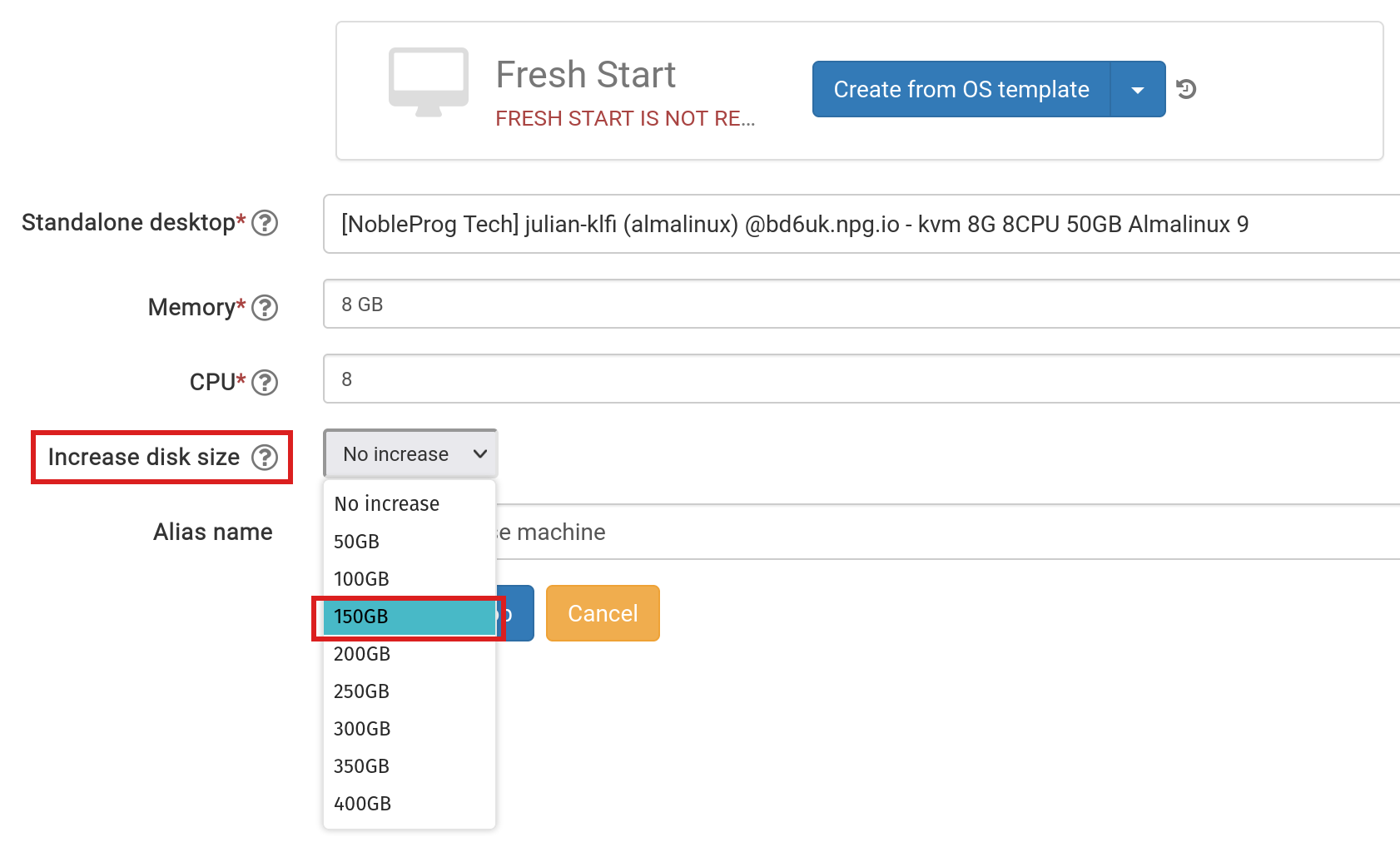
At this stage, increase the disk size as needed and submit.
Go to the 'Standalones' link at the top of the page and verify it appears there.
Delete the Fresh-Start machine from the course here in Hungary using the 'Delete' button.
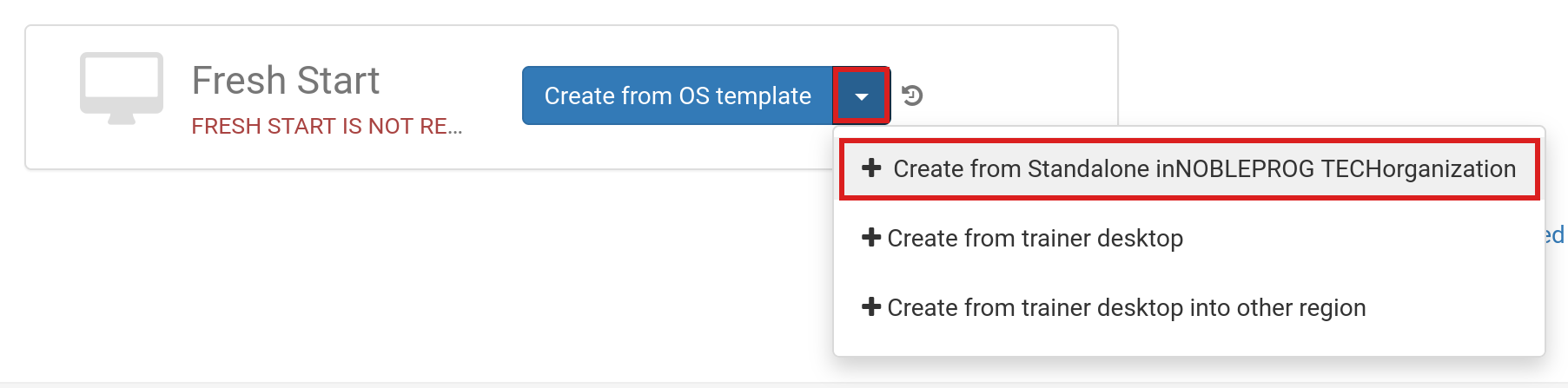
Click the 'Create Fresh-Start from my Standalone' button
In the 'Create from Standalone' dialog, you may also opt to enlarge the disk if you skipped the earlier step
Add an Alias name if desired, then click the 'Create Desktop' button.
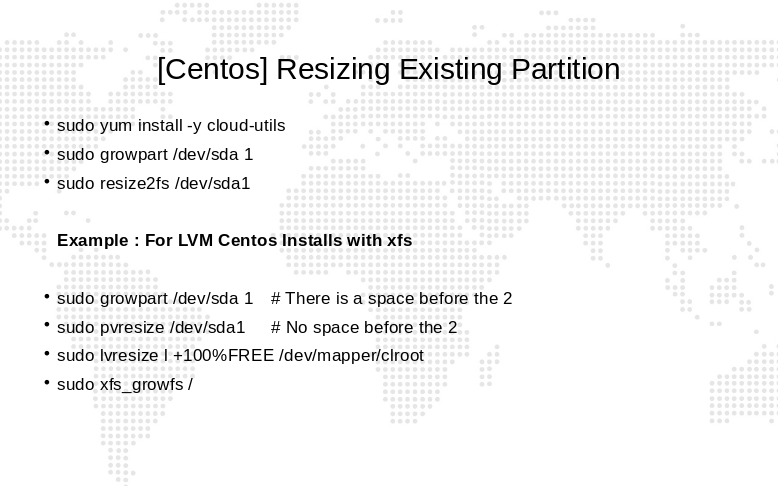
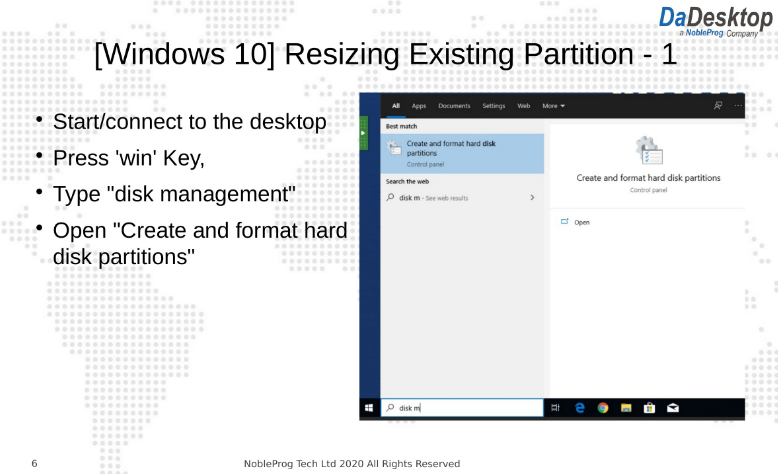
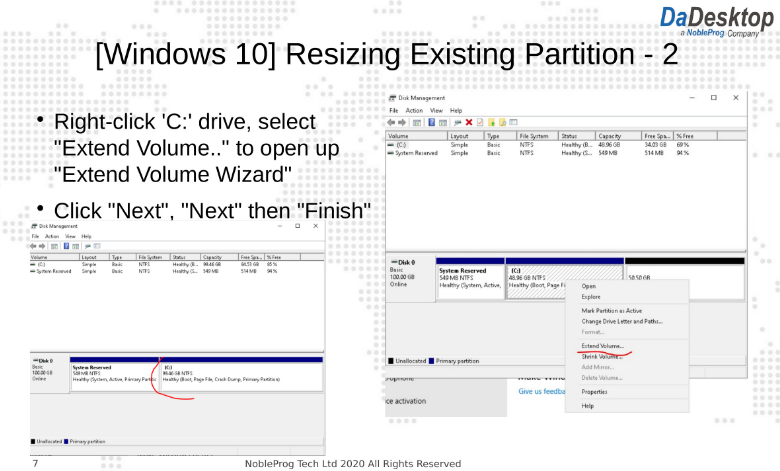
For standard DaDesktop Linux and Windows OS templates, the OS will automatically expand. Note that AlmaLinux standard templates configure default partitions differently, requiring extra manual steps outlined below.
For custom OS templates, extending partitions may need to be done manually; the steps are provided below.
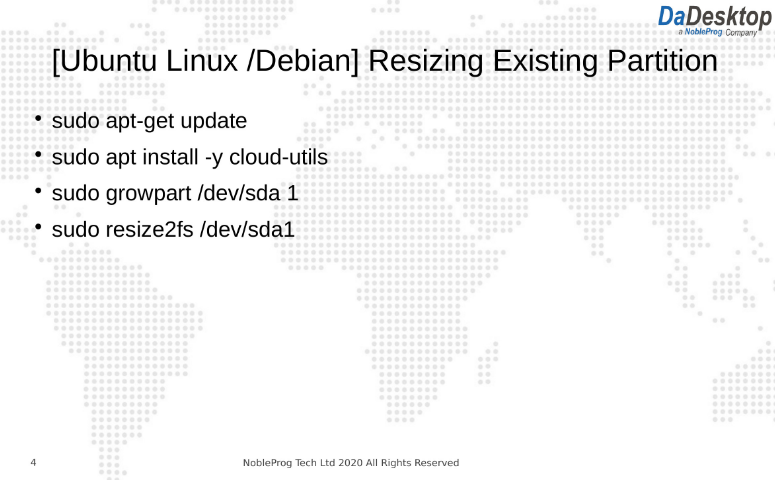
For custom OS templates and AlmaLinux standard templates, follow the steps below to extend the partition(s)
Follow these instructions to adjust your desktop partitions