Creating a Fresh Start from a Standalone Desktop
-
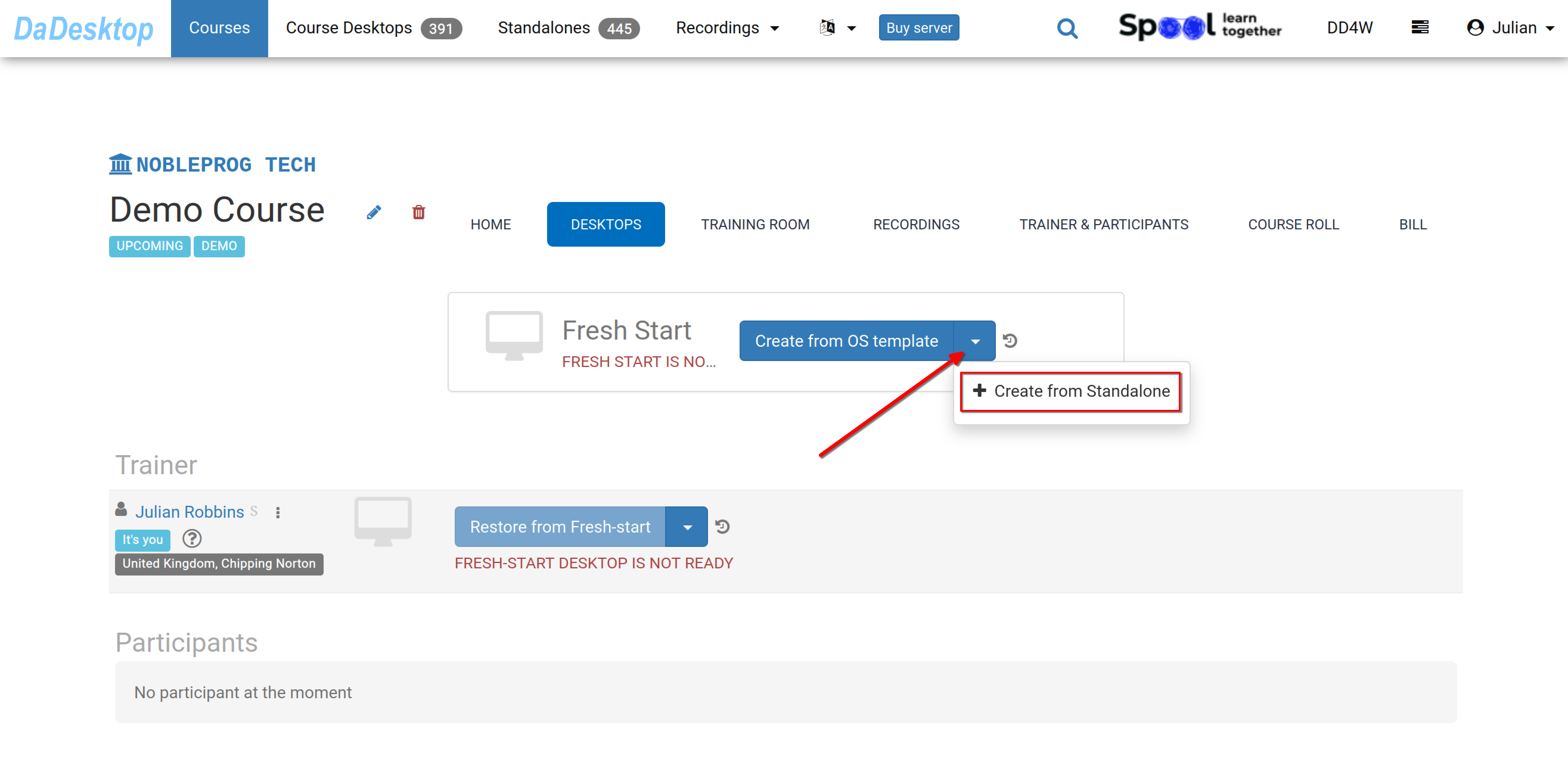
Navigate to the course you have set up – below you will see a Demo course as an example. Then select the Desktops tab, click the drop-down arrow, and choose "Create from Standalone" to initiate your Fresh Start.
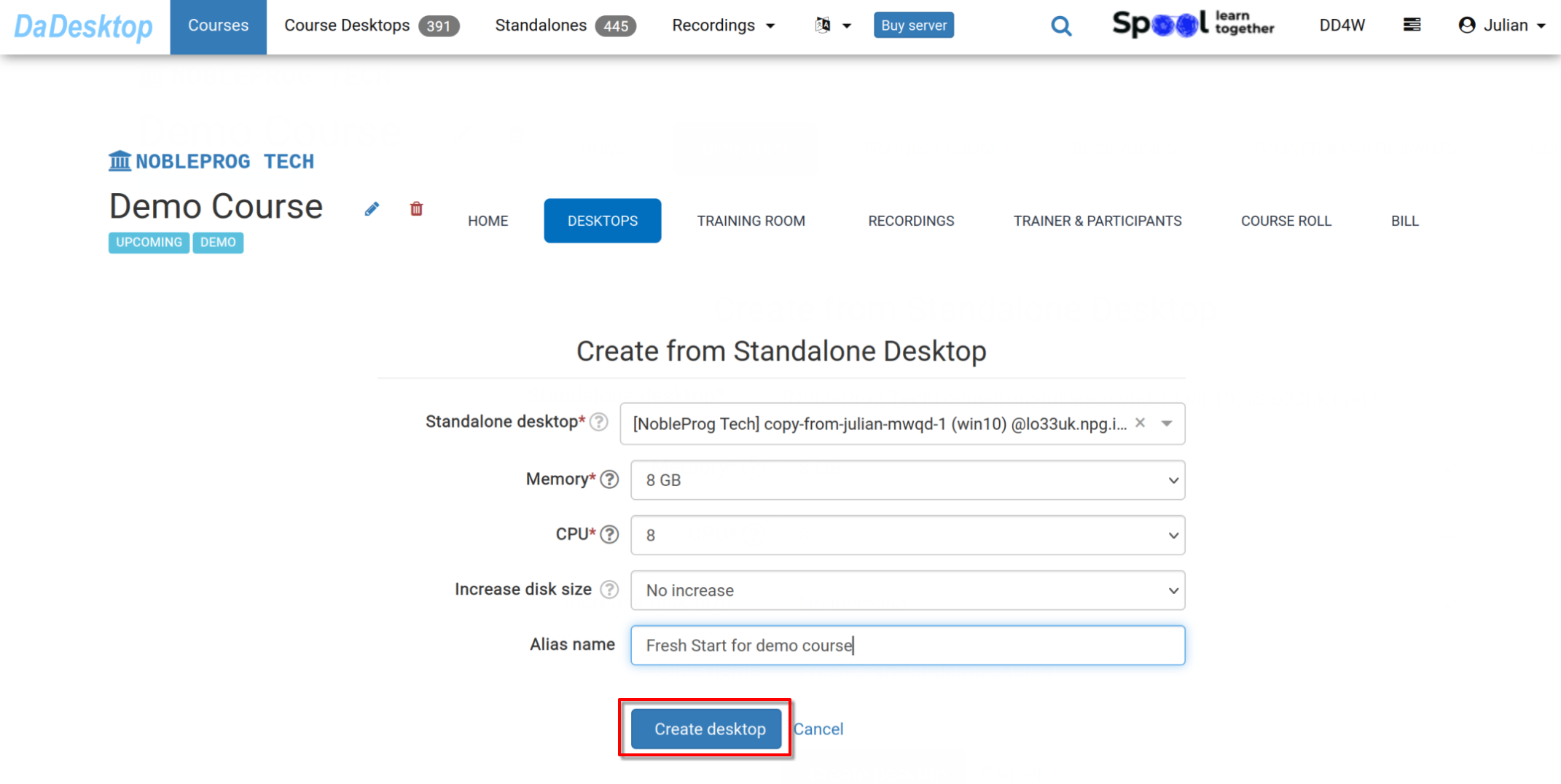
- Pick the "Standalone desktop" you previously used to prepare the course environment (software, course materials, quizzes, etc.).
-
At this stage, you can adjust the memory, CPU, and disk size as needed. Then click "Create desktop".
-
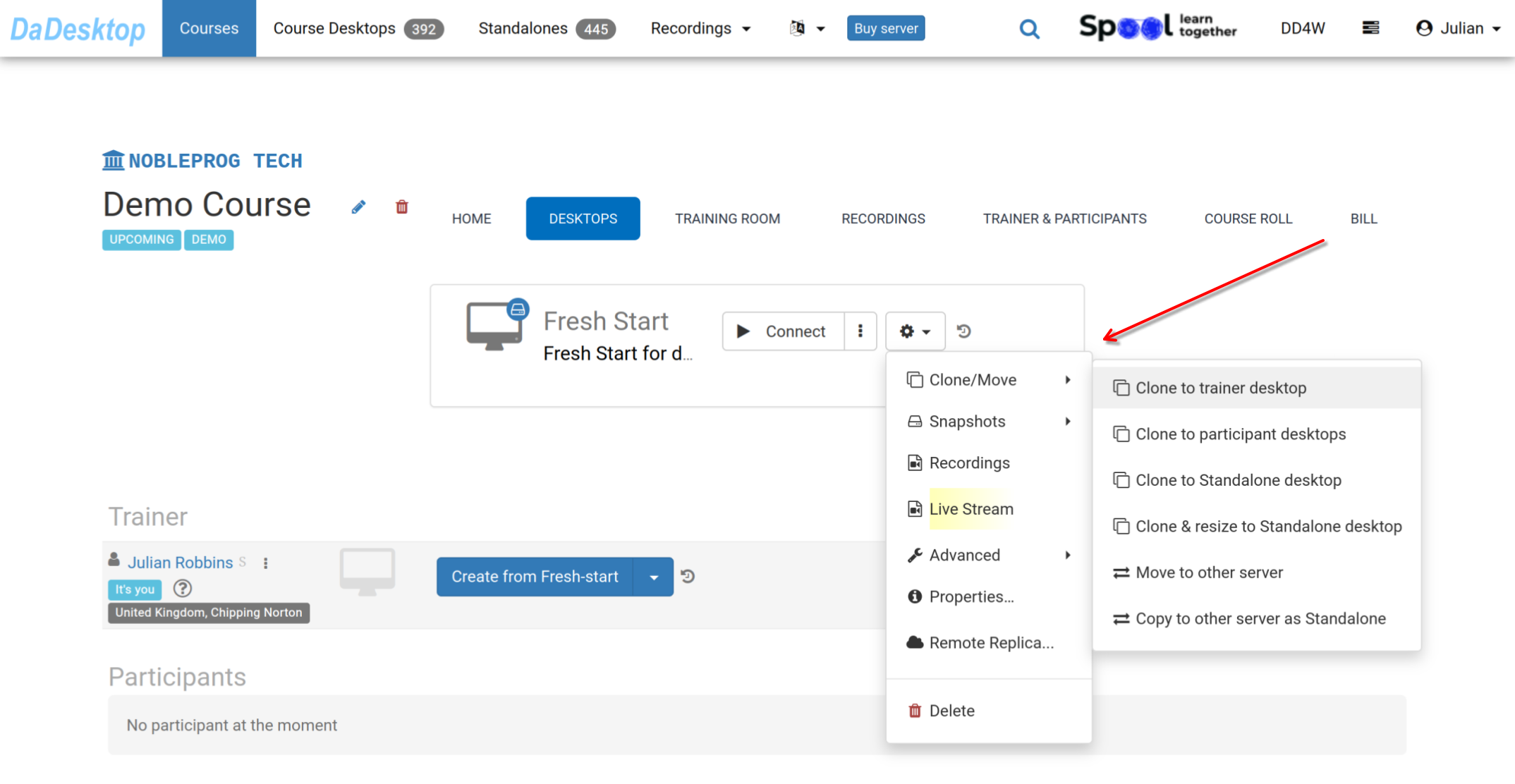
Now the Fresh Start is ready. Both trainers and participants can clone desktops from it. The Fresh Start acts as a central desktop within the course, enabling bulk cloning for all users in one go. Everyone in the course can restore from the Fresh Start if needed.
Through the 'Cog' menu, you gain access to many other options, such as cloning your Fresh Start to a Trainer, Participant, or Standalone machine, and also cloning with resizing to a Standalone. Additional actions include moving the Fresh Start to another server, creating Snapshots, reviewing Recordings, or configuring a Remote Replica.Please consult the relevant documentation for details on these features.