Adjusting Disk, CPU, and Memory Resources
Instructors can adjust the resources initially set up for the Fresh-Start Desktop. This proves beneficial when you discover that the course calls for greater CPU, memory, or storage capacity to support extra programs and/or software.
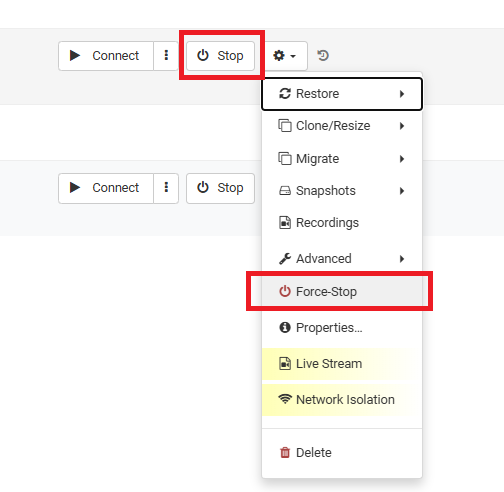
To alter these settings, ensure the Fresh-Start desktop is stopped prior to making any adjustments. Click the gear icon and choose either "Stop" or "Force-Stop" the desktop.
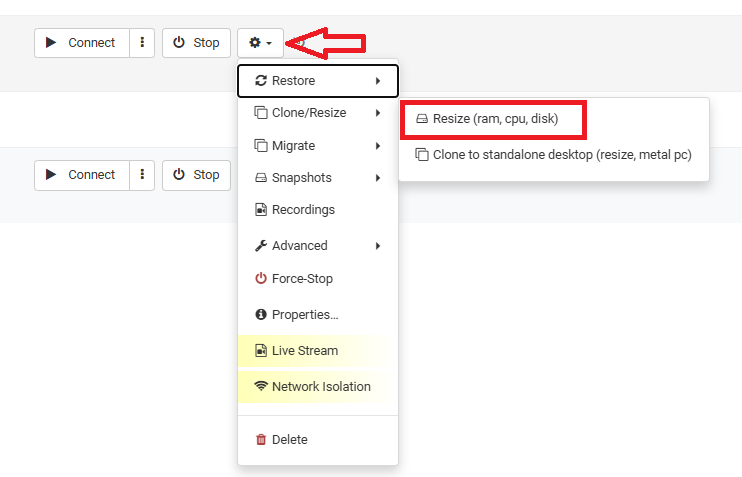
After stopping the desktop, you can then resize the allocated resources. Click the gear icon, go to advanced > Resize (ram, cpu, disk).
Once selected, the Resize form will appear, enabling you to reallocate the CPU, RAM, or Storage resources your desktop requires. The form shows the maximum limit for each.
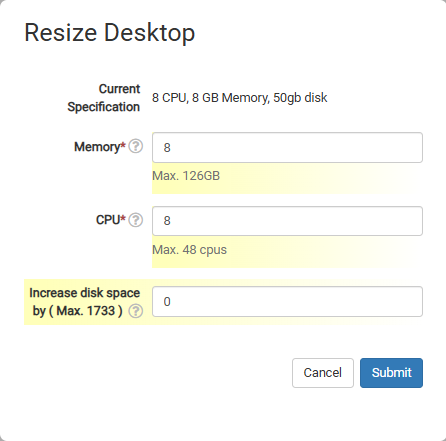
Bear in mind that this will affect the desktop's cost, but it's recommended to allocate what you need to keep the course running smoothly.