How to Use Your Desktop After the Course Has Ended
One of DaDesktop's handy features lets course attendees keep their course machine for extra practice even after the class wraps up. Before the course ends, participants receive an email asking if they'd like to retain access to their desktop machine once everything is over.
Normally, each participant's course desktop is taken down shortly after the course ends. If you'd like to hold onto yours so you can continue working through the labs, you can clone it into a 'Standalone Desktop' that remains available later. Just head to your Course, find your Desktop machine, and click the 'Use desktop after course' option next to it.
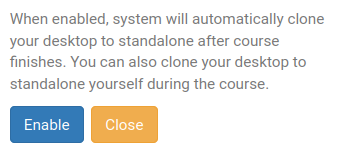
After that, DaDesktop walks you through a straightforward process and lets you enable this feature.
Once you've enabled it, a new indicator will appear beside your course machine, as shown below.

When the course is over, you can reach your Standalone machine by clicking the Standalones menu at the top of your screen.
Any machine left unused for a month will be automatically removed, but you'll receive an advance email reminder—giving you plenty of notice if you'd like to keep using your Standalone machines.
For more control over your Standalone machine's retention, check out this page for detailed instructions.