Trainer's Session Recordings
DaDesktop provides multiple options for capturing desktop activity and course content. These include troubleshooting recordings, training room recordings, and trainer recordings.
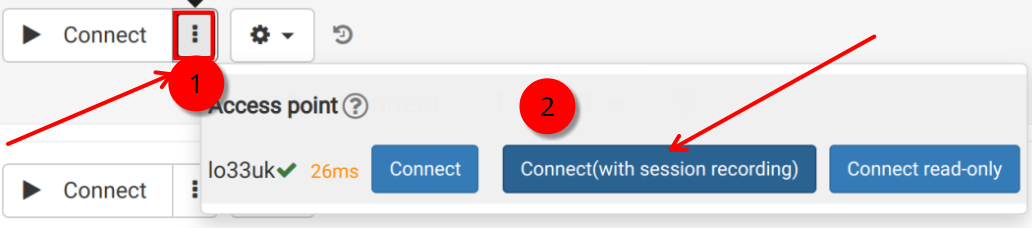
Trainer recordings refer to captures of the trainer’s DaDesktop machine. To initiate a session recording of the trainer machine, follow these steps.
- Click the three-dot menu icon to open a dropdown. Then select the option 'Connect (with session recording)'
-
The trainer machine’s audio and video are recorded, but the recording is not accessible until you close the virtual classroom, at which point it is generated. Note: SuperAdmin users have an extra menu option to view live recordings while they are being captured.
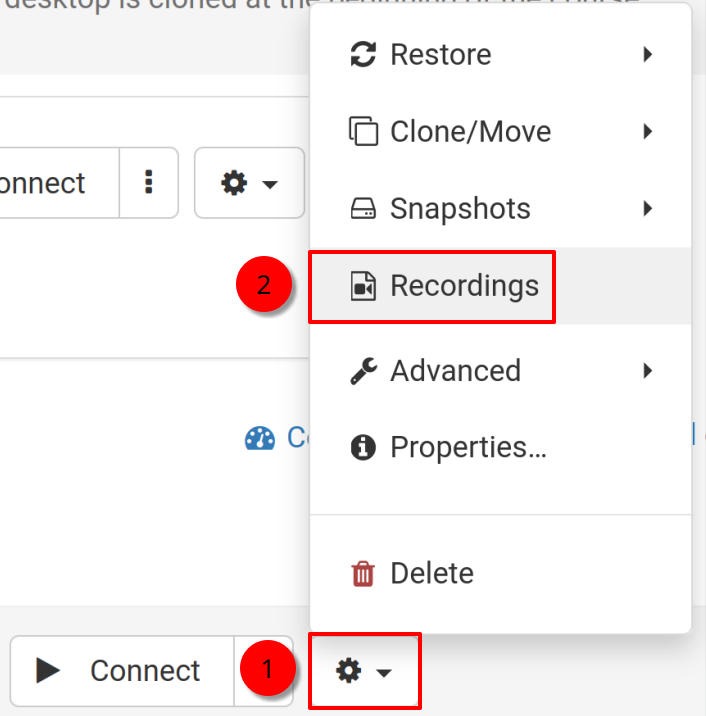
- To access and modify the recordings, click the cog icon and navigate to the Recordings menu.
Accessing Recordings
You can view trainer machine recordings in two different ways.
- From the Recordings menu described earlier, you can play or delete recordings as needed. The double-wrench icon denotes 'Troubleshooting Recordings'—these are generated automatically for diagnostic purposes rather than for presentation.
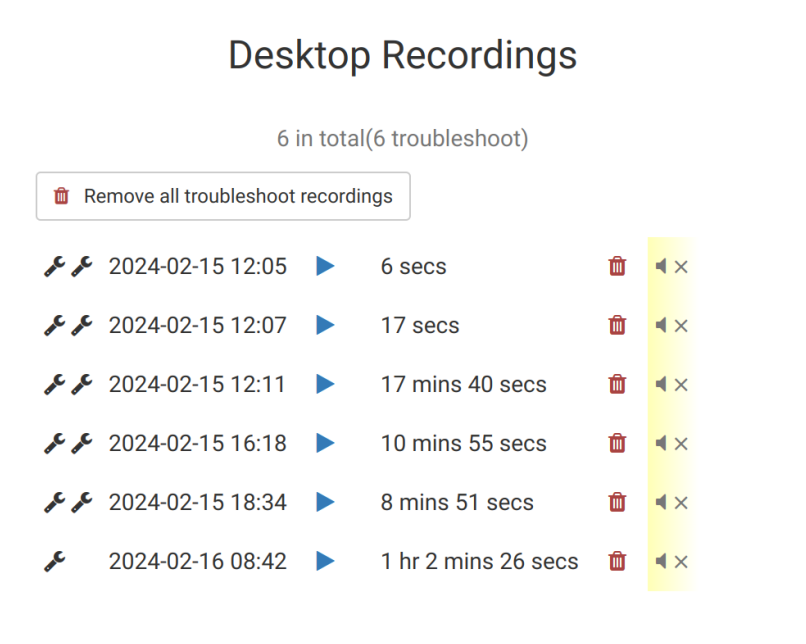
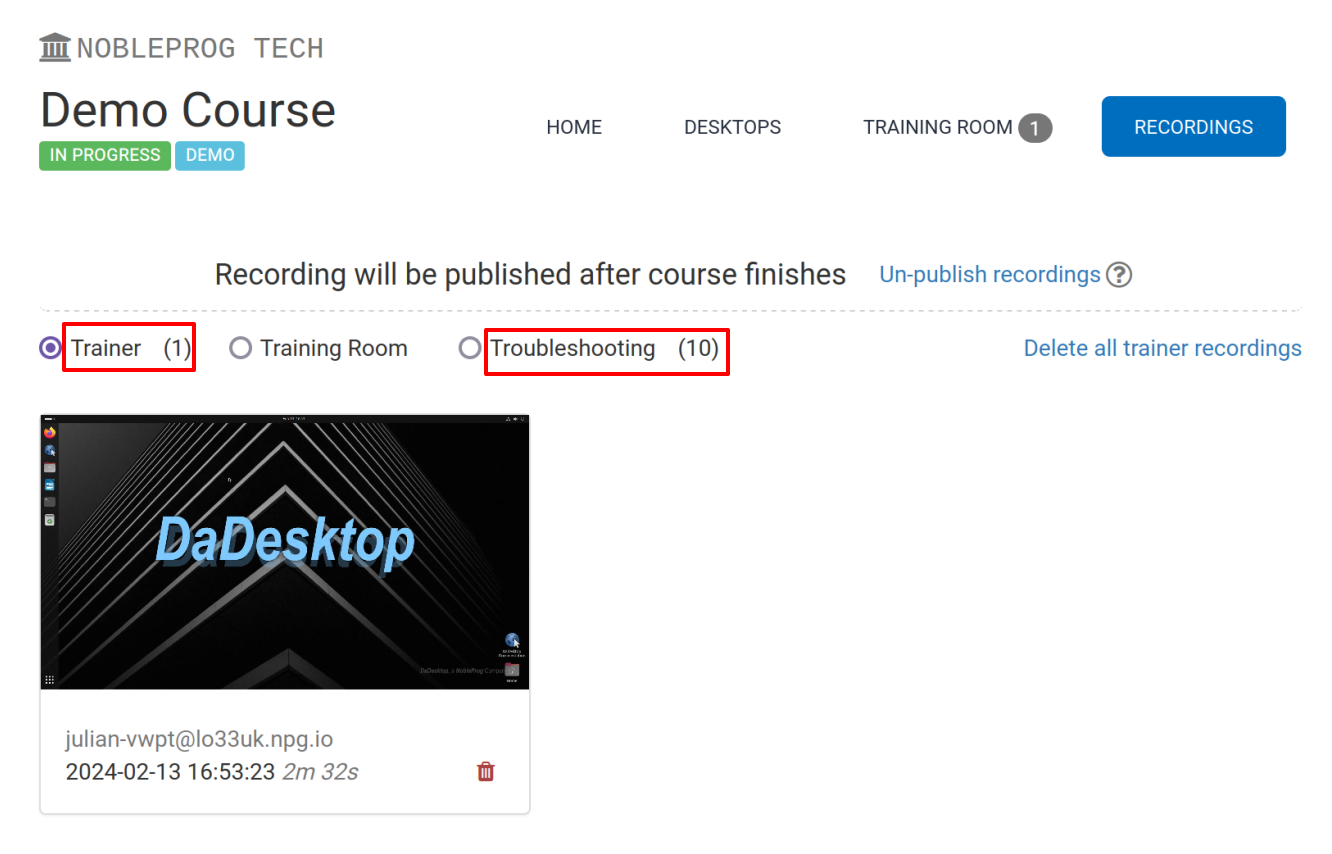
2. Alternatively, by using the 'Recordings' tab within a course, you can view trainer recordings, training room recordings, and troubleshooting recordings.